☰ Contents Page 1 of 27 · Getting going
Getting started
From the organiser's Help guide. This is the page an organiser reads inside their own admin, exactly as they see it. On the demo you can read it but not open the admin behind it.
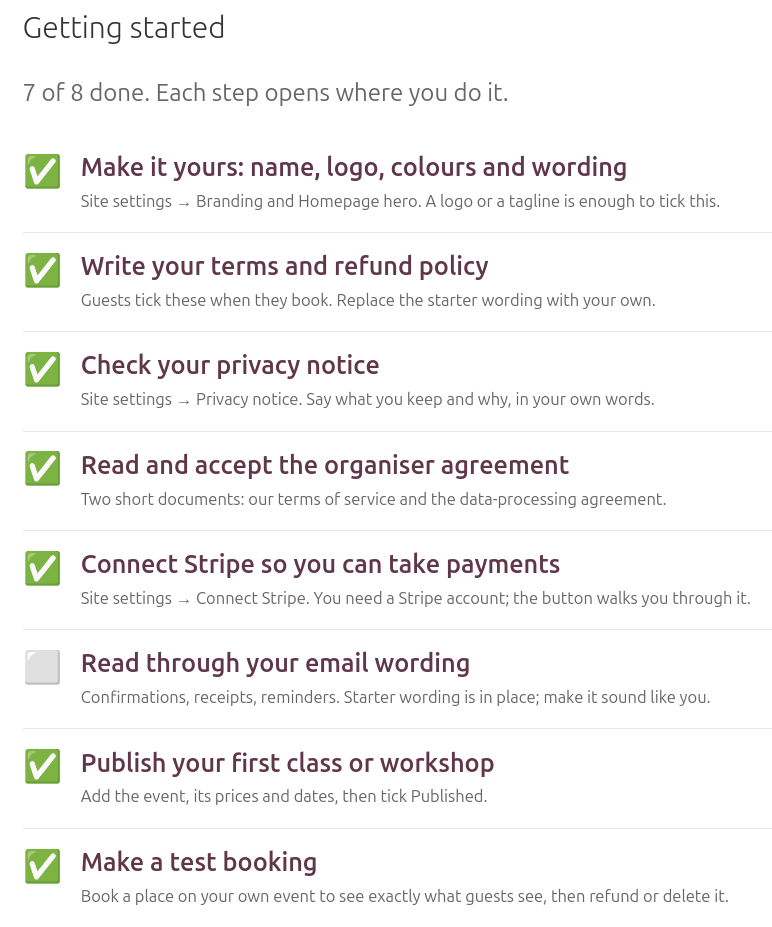
The checklist
If your site is new, start with the checklist: it shows what's done and what's next, and each step links to where you do it. The usual order is: make it yours (name, logo, colours, wording) → refund policy and privacy notice → accept the organiser agreement and connect Stripe → check your email wording → publish your first class → make a test booking.
Today, your front page
The admin opens on Today: what is on in the next seven days (with Check in and Register buttons for each date), anything that needs you (applications, free places with people waiting, overdue instalments, failed pass payments, recent cancellations), your latest bookings, quick actions and this month's card money. Click Today at the top of any page to get back to it.
Where everything lives
The menu across the top groups everything by job, with a Find a guest or booking box beside it. On a phone the same menu sits at the bottom of the screen, with Find to look up a booking and More for the rest.
| Events | Your classes, workshops, courses and retreats (upcoming first), Weekly classes (term dates for a repeating class), 1-1 calendars if you offer one-to-ones, booking questions and your terms. |
|---|---|
| Bookings | Everyone who has booked, check-in, the waitlist and applications, pass holders and pass types if you sell passes, and 1-1 appointments. |
| Money | Card payments (reference only, you never need to edit them), instalment plans, the solidarity fund if you use it, discount codes, and Credit (what guests hold to spend on a later booking) if you use credit instead of refunds. |
| Your site | Site settings, in six short pages: your details, look & feel, home page, features, emails & alerts, and payments (Stripe and the agreement). Then website pages, the wording of every automatic email and a log of what's been sent. |
| Help | This guide, the getting-started checklist, the guided walkthrough, Ops & tools (backups, a test email), and Every admin list if you ever need a list that isn't in the menu. |
| Logins | Logins are set up for you. To add or remove a staff login, or if someone has lost theirs, email bookings@bookthecircle.com. |