☰ Contents Page 22 of 27 · Your site
Site settings
From the organiser's Help guide. This is the page an organiser reads inside their own admin, exactly as they see it. On the demo you can read it but not open the admin behind it.
Your Site → Site Settings
Site settings comes in six short pages. Pick one from the menu on the left (on a phone it's the row of buttons at the top), change what you need and press Save: you stay on the same page.
- Your details — your name, contact email, time zone and currency, and your privacy notice.
- Look & feel — logo (or your name is shown), four colours (click a colour to pick a new one), a choice of font pairings with a preview line, and the footer line. This admin sets how the admin looks to you and your staff, separate from your website: Easier-to-read admin (on to start with) makes text black, keeps everything at least 9pt, underlines links in blue, and puts Text A− A+ buttons at the top; Admin main colour and Admin highlight colour change the admin's top bar, headings and buttons. If you already typed in your own fonts, they're kept under Advanced; pick Keep my current fonts to leave them alone.
- Home page — What's on only is a plain list of events. Front page puts your tagline and intro above it with links to your pages, for when this site is your whole website. The This week bar is the strip of the next seven days at the top: one This week card listing only the days that have something on, all seven days, or none. Where 1-to-1 sessions show (with 1-to-1 bookings on): a Book a 1-to-1 link in your menu, a 1-to-1 sessions section on your What's on page, or both. Tick Contact page for a Contact page with a form; messages come to your notification addresses.
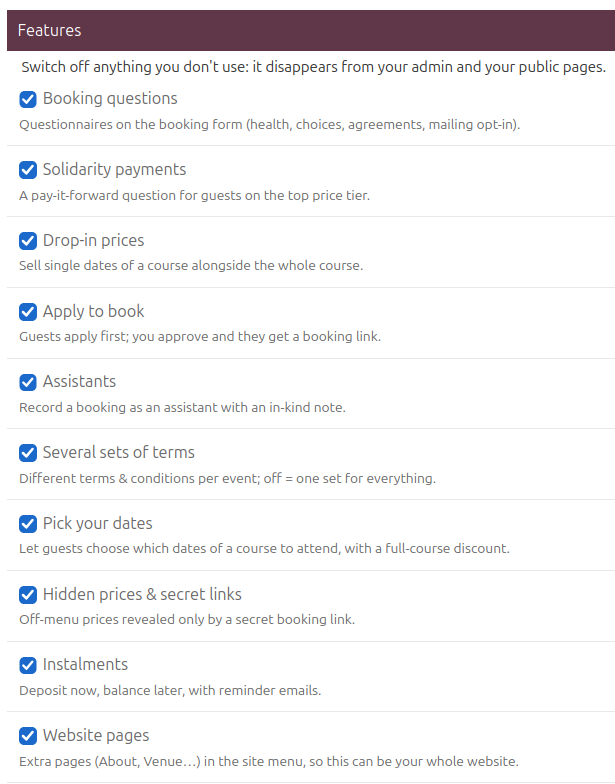
- Features — switch off anything you don't use (applications, instalments, drop-in prices, questionnaires, memberships, class packs, credit…) and it disappears from this panel and from your site. Nothing is lost; switch it back on any time. Each feature that's on has a Set it up → link to where you set it up, e.g. Discount Codes → your discount codes, Memberships → Pass Types. Under Waitlist: Offer freed places to the waitlist automatically (on to start with; untick it to choose who gets a place yourself) and Keep an offered place for … hours (24 to start with). Apply-to-book events are never offered automatically. Under Credit: Credit can be used for … months (12 to start with; you can change the date on any one credit later) and Guests cancelling online can take credit instead of the refund they'd get (off to start with). Everyone's credit is under Money → Credit.
- Emails & alerts — who's told about new bookings and applications, the Morning summary email, the monthly statement, who your emails come from, and Repeat overdue payment reminders every … days (0 sends the overdue email once; a number sends it again that often until the instalment is paid), and Give the place up when an instalment is … days overdue (0, the default, never does; 14 cancels the booking 14 days after a missed payment, puts the place back on sale (and offers it to your waitlist) and emails you both; nothing is refunded by itself).
- Payments — your Stripe status and the Connect Stripe button at the top, then the organiser agreement. Once Stripe says your account is taking payments, we switch your bookings over to it for you.
Morning summary email
Off to start with. Tick it under Emails & alerts and at 7am, on any day when something is on or something needs you, you get one short email: today's events (time, title, places taken out of the total, how many are waiting) and the Needs you list from your Today page, each line with a link straight to the right admin page. On a quiet day nothing is sent. It goes to your notification addresses, once a day. Its wording is Organiser: morning summary in Email templates.