☰ Contents Page 25 of 27 · Your site
Keeping it safe
From the organiser's Help guide. This is the page an organiser reads inside their own admin, exactly as they see it. On the demo you can read it but not open the admin behind it.
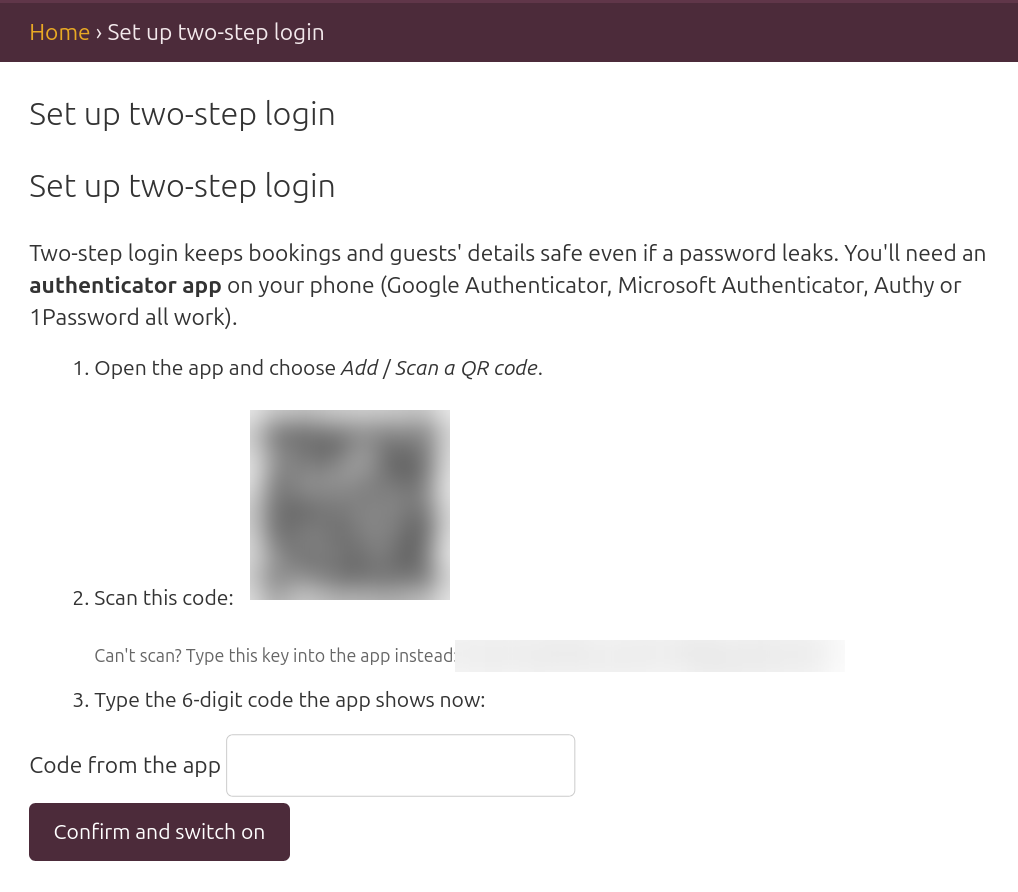
- Two-step login. After your password, a six-digit code from an authenticator app on your phone. It is optional for organisers and their helpers, and recommended for anyone who can see guests' details. (It is required only for the platform operator's own login, which can see every organiser.)
- Setting it up (about two minutes). Install a free authenticator app on your phone if you don't have one (Google Authenticator, Microsoft Authenticator or Authy). Click Two-step login at the top of the admin (on a phone, under More) then Switch on two-step login; in the app, add an account by scanning the square code on the screen (or typing in the key under it); type the six digits the app shows; save the ten recovery codes somewhere safe. From then on each login asks for the app's current code. You can switch it off again on the same page (password needed), or set it up again on a new phone there. Lost your phone? A recovery code gets you in once; then set the app up again. No smartphone at all? Email us and we will sort something out.
- What your guests can do themselves. From My bookings in the site menu or footer, we email them a secure link to everything they've booked, what's paid and what's due, and any credit they have. There they can cancel a booking (or one date of it) under your terms. On that page Download my data gives them a copy of everything you hold about them (answers included), which covers a data-access request without you lifting a finger.
- Health answers stay inside this panel, are never emailed, and are deleted 30 days after the event unless the guest asked you to keep them.